Help
Office Hours
Office hours are all held in Samson Hall.
Office Hours by Day
| Day | Time | Person / Resource | Location |
|---|---|---|---|
| Monday | 12:00–16:00 | DATS Help Desk: Rasika & Aakash | Rm. 304 |
| Tuesday | 11:20–13:20 | TA: Haeyeon Jeong | Rm. 304 |
| 11:00–15:00 | DATS Help Desk: Rasika | Rm. 304 | |
| 16:00–17:30 | TA: Sai Rachana Kandikattu | Rm. 304 | |
| Wednesday | 9:00–11:00 | Prof. Sarah Cassie Burnett | Rm. 302 |
| 12:00–16:00 | DATS Help Desk: Rahul & Aakash | Rm. 304 | |
| Thursday | 11:00–12:30 | TA: Rasika Nilatkar | Rm. 304 |
| 12:00–16:00 | DATS Help Desk: Rahul | Rm. 304 |
GW Academic Commons Tutoring
The GW Academic Commons is your one-stop shop for academic support resources.
Peer-Led Learning
- FREE tutoring in many 1000–2000 level courses.
- Sessions available at Gelman Library or virtually.
- Course-based review sessions.
They offer peer tutoring for this course!
- Schedule your session at go.gwu.edu/Tutoring (mobile app also available).
- Tutors are hired with faculty input and trained in best practices.
- Tutoring is free and easily accessible.
Skills for Academic Success
- Asynchronous online modules.
- Topics include time management and note-taking.
Find modules at: Skills for Academic Success.
Writing and Research Support
- Research help and consultations.
- Access to library space and resources.
- Partnership with the GW Writing Center.
See their slidedeck for more information.
RStudio not working on your computer?
Accessing RStudio Elsewhere
- All on-campus computer labs (Library, Rome Hall basement, etc.) have RStudio installed.
- The DATS help desk computers will also have RStudio installed.
- Alternatively, RStudio has an online version called Posit Cloud:
- Free with limited storage
- $5/month for students if you need more
- Free with limited storage
Setting up RStudio in Posit Cloud
- Create an account and log in to Posit Cloud.
- In your Workspace, click New Project → New RStudio Project.
- This creates a project and sets you up with RStudio in your browser.
Uploading the Blog Template
Since Posit Cloud doesn’t provide the blog template options directly, you’ll need to upload the provided .zip file. You can download a .zip of the template by clicking here.
Go to the Files pane and click Upload.
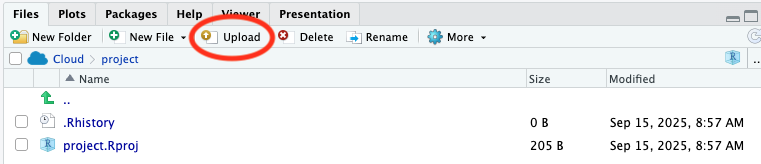
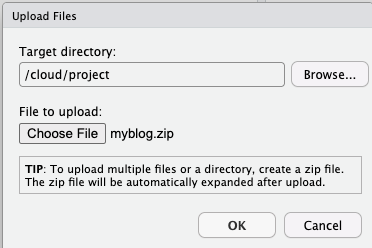
Find the
.zipfile on your computer and select it to upload.
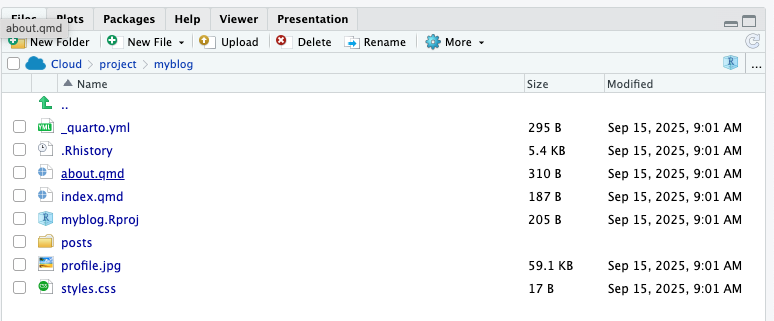
You should now see the
myblogfolder. Click on it to view the assignment files.
Rendering
- To render correctly, click on the gear icon and choose Preview in Viewer Pane.
- If you don’t, you may receive an error.
Submitting Your Work
- When done, download the assignment files:
- Select the files to submit.
- Export them from Posit Cloud.
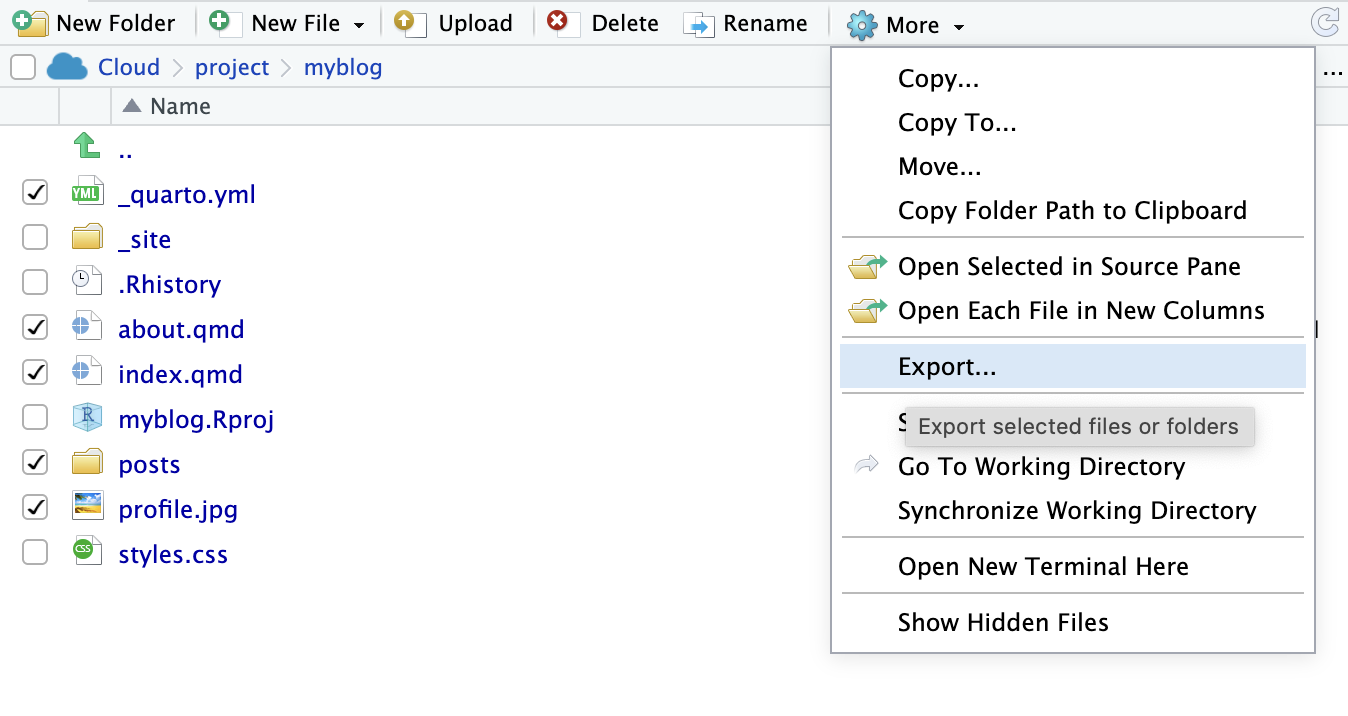
- Select the files to submit.
- You can name the
.zipfile anything you like (doesn’t matter).- Save it somewhere on your computer.
- Don’t extract it — just drag the
.zipdirectly into Gradescope to submit.
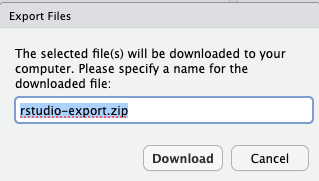
- Save it somewhere on your computer.